
Move a same-domain WordPress site only after you have a restorable copy of its files and database, a working preview on the new host and a plan for changes made during cutover. A supported migration plugin or hosting transfer service suits a low-change site. An active store that cannot pause transactions needs a coordinated data-consistency plan.
Before you move: confirm the domain, services and end state
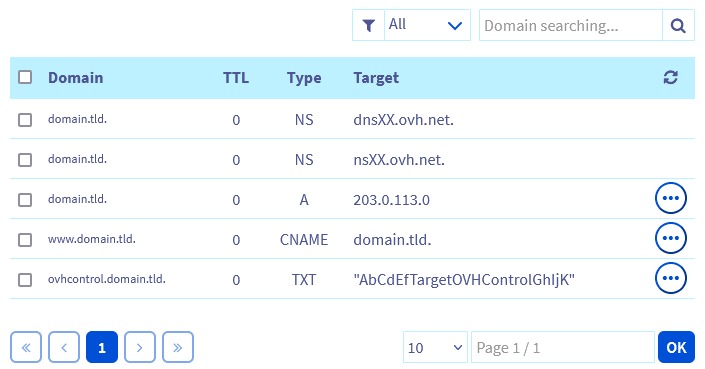
Moving WordPress to another host changes the server that delivers your site and keeps its public address. Visitors still go to https://example.com, but a different hosting account runs the application and database.
Your domain registrar, DNS provider, web host and email service can be four separate businesses. You can move the site and leave the other three where they are.
Write down the following for the installation you plan to move:
- Domain and routing: Record the domain, its
wwwvariation, the authoritative nameservers, the current origin server and any CDN or reverse proxy. - WordPress installation: Note the WordPress version, plugins, theme, database, server environment and whether you have file and database access.
- Connected services: List email hosting, SMTP integrations, payment systems, scheduled jobs, forms and anything else that depends on the current server.
- Changing information: Orders, comments, registrations, bookings, uploads and any other records visitors create.
- Administrative access: Which accounts control the old hosting, new hosting, DNS and existing backups.
A company might move its WordPress site to a new server and keep domain registration and business email with their current providers. In that case you change only the website’s DNS records.
The WordPress migration documentation separates transfers that keep your URLs from changes to the domain or address structure.
Preflight requirement: Make sure you can reach the live database, the website’s DNS and the email routing. Without access to all three, you cannot cut over safely.
Back up both WordPress files and the database, then verify the restore

A recoverable copy needs both the site files and the database. The files hold the application, themes, plugins, media and configuration. The database holds posts, users, settings and much of what plugins manage.
Downloading your site folder over FTP or SFTP does not copy the database, which sits on the server separately.
One WordPress owner found this out after cancelling the old hosting account:
I have a WordPress website, which I wanted to move to a new hosting provider, so I ftp-ed all the website files to my computer. After I cancelled the old hosting, I realised that I forgot to copy the database aswell, which was stored separately on the server. I’m now in a situation that I have all the files for the website, but when I try to load it, it gives an error that the connection to the database is failed. Is it possible to recover or recreate the database somehow to get the website working? I’ve searched the internet but haven’t found anything useful on how to solve this. I’m not an expert, I thought I could just copy paste the website to a new provider
The WordPress backup documentation lists both file and database backups as parts of a complete recovery.
Build a backup you can restore
- Save the application files: Include
wp-contentwith its themes, plugins and uploads,wp-config.php, the WordPress core files and rewrite configuration such as.htaccess. - Export the matching database: Include the standard WordPress tables, any extra application tables and your custom table prefix if you use one.
- Record the snapshot point: Note when you took the backup and keep the credentials you need to restore it.
- Store the backup separately: Keep it outside the hosting account you plan to retire and out of public reach, credentials and database contents included.
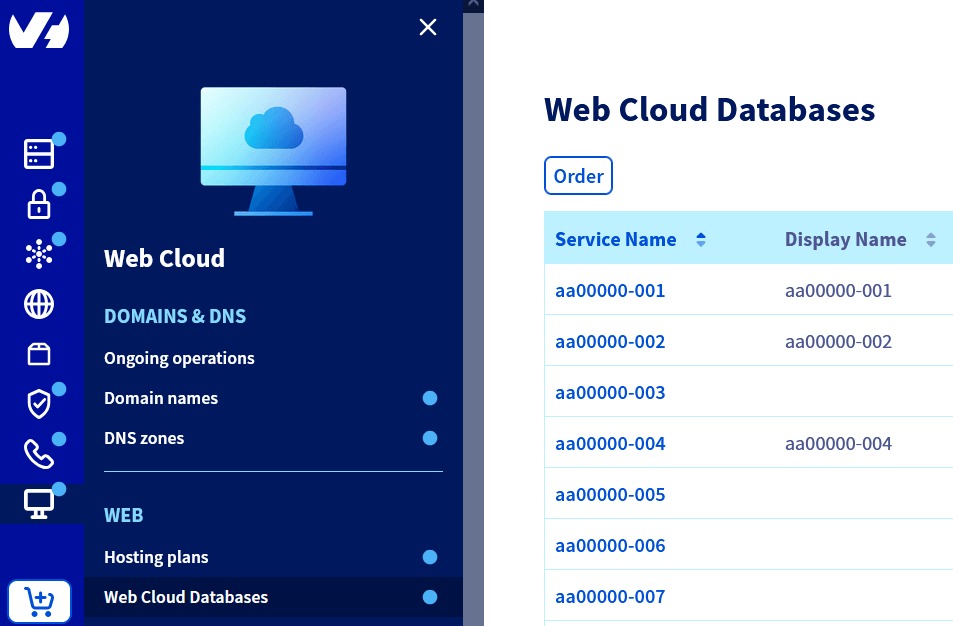
A backup file proves nothing until you restore it. Restore the paired files and database in an isolated environment, confirm that WordPress connects to the restored database, then open a few posts and uploaded images from that copy.
If the files restore but the expected database tables are missing, the backup has failed. Fix it while the original site is still running.
Choose a transfer method based on access, complexity and live data
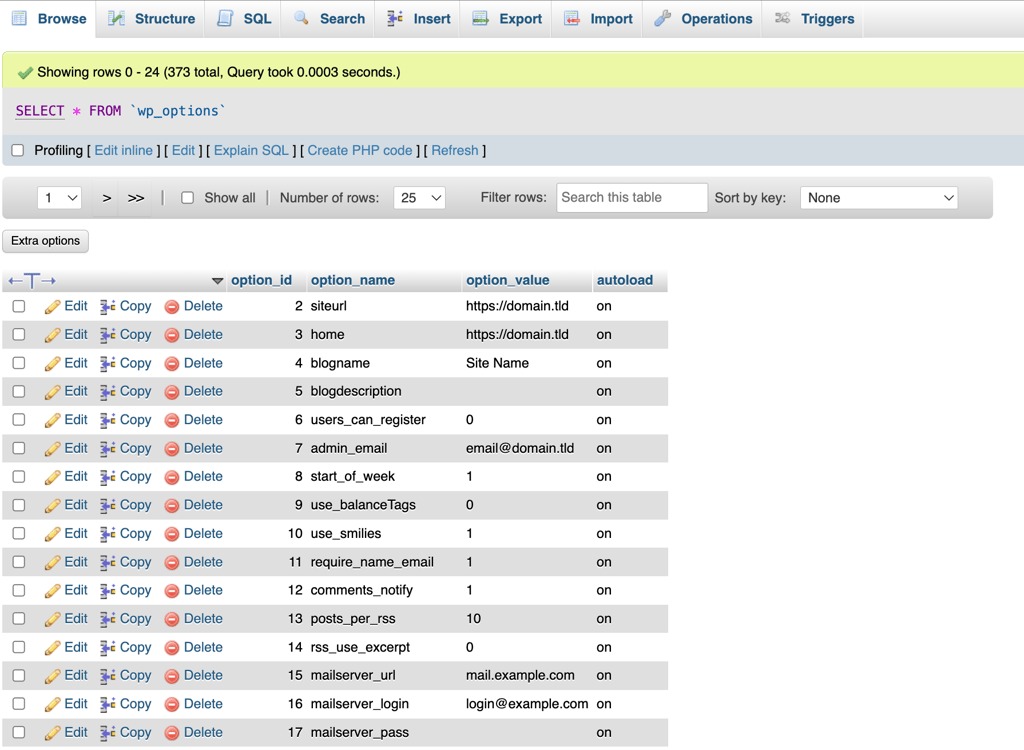
Three approaches cover most host moves: a transfer by the destination provider, a compatible migration plugin, or a manual transfer of files and database.
| Method | Suitable situation | Required access | Main trade-off |
|---|---|---|---|
| Host-assisted | You want the new provider to perform a supported transfer | Provider-approved access to the source and an account at the destination | Provider scope can exclude DNS, email, scheduled jobs and final testing |
| Migration plugin | Conventional site with a working WordPress admin and compatible hosting | Plugin permissions, export access and enough server resources | Results depend on the tool and the environment |
| Manual transfer | A developer needs direct control, or a plugin cannot finish the move | File access, database export and import, configuration permissions | More control means more work and responsibility |
With an assisted transfer, get a clear statement of what the provider will migrate. Application-specific jobs and final acceptance can stay with you.
A plugin such as Duplicator can package the site and provide an installer when your environment supports it. Check plugin compatibility and export coverage before you trust a simple-looking interface.
A small brochure site with occasional edits fits an assisted move. A store that takes orders during the move also has to solve the live-write problem described below.
Prepare the destination and import the correct WordPress state
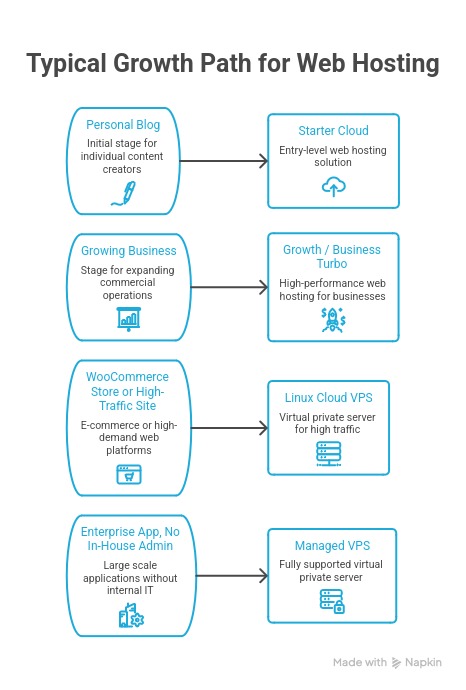
The new host must run the site before it gets public traffic. It needs a compatible WordPress runtime, an accessible database, correct file permissions and web routing for your hostname.
Check the destination’s PHP and database versions against what the site needs. Plugins, themes and server configuration can depend on things a new hosting account does not have.
Transfer files and database
For a manual move, follow this sequence:
- Prepare the new account. Add your domain to the destination hosting configuration and create the database. Leave public DNS alone for now.
- Export the source database. Use phpMyAdmin, or WP-CLI if you have shell access. A privileged WP-CLI user can run
wp db export backup.sqlfrom the WordPress installation to produce an SQL export. Store the dump in a private location outside the publicly served document root, or move it there promptly. Never leave an SQL backup reachable over HTTP. - Copy the WordPress files. Transfer the application, themes, plugins, media and configuration with your host’s file-transfer method.
- Import the SQL data. Load the export into the destination database with its import tool and confirm the WordPress tables are there.
- Connect the application. Set the destination database host, name, username and password in
wp-config.phpif they differ from the source. - Check startup. If WordPress cannot connect or load, read the destination’s PHP and server logs.
This export is the initial copy. A site that keeps accepting content needs the final data transfer described in the live-write section before cutover.
Wrong file permissions, missing PHP extensions or different web-server rules can break an otherwise complete transfer.
Test the new origin on the intended domain before DNS cutover
Test the site on the hostname it expects. A provider preview, a staging environment or a hosts-file override on your computer lets you do that before public DNS changes.
A hosts-file override tells one computer to resolve a domain to a specific IP address. Everyone else keeps following normal DNS.
For example, a local hosts file could contain:
192.0.2.10 example.com www.example.comHere, 192.0.2.10 is a documentation-only address. Replace it with the destination server’s public IP and example.com with your real hostname. Remove the mapping after testing so the computer goes back to normal DNS.
The destination web server must recognize the hostname you request. An IP address alone can land on a different virtual host, and an HTTPS preview needs a valid certificate and a suitable origin or proxy setup.
How WordPress handles URLs
WordPress keeps a WordPress Address and a Site Address, commonly stored as siteurl and home. Themes, plugins and page builders can also store absolute links to pages, images or stylesheets.
One user described the problems this causes:
I don’t know why they had to store site url in database, which is the core reason of the headache, not to mention some plugins like elementor put absolute url for resources, instead of a relative url. To migrate a Joomla site, with backup tools like akeeba, I can just use a temporary URL fro the destination server, I can use that URL to test everything in the destination server. I can change the DNS once everything is up and running under the temp URL, without worrying that my users hit some error page. But with WordPress? It’s more than often that after I change the DNS, some part of the site is not working. It’s usually caused by wrong URL.
If you keep the same public domain and URL structure, you do not need a global domain replacement. Testing on a different temporary hostname can require temporary URL changes, which you then restore.
A CDN or reverse proxy can cache content or route requests differently. Use an origin log or another distinguishable server response to confirm that the destination serves your preview.
Load representative public pages and the WordPress admin through your hostname. Fix any failure before you change public routing.
Decide where new website changes go during the switch
The migrated database shows the site at the moment you copied it. Comments, registrations, orders, uploads or bookings written to the original server afterward stay there until you transfer or synchronize them.
During DNS cutover, some visitors reach the new server while others still hit the old one through cached DNS. If both accept updates independently, the two databases diverge.
What you do next depends on whether the site can stop accepting changes for a while.
If your site can pause writes
Use the initial copy to prepare and test the destination. When you are ready for the final transfer:
- Restrict changes on the source. Put the site into a maintenance or read-only state. Cover forms, uploads, registrations, scheduled tasks, external cron jobs and background workers that modify data. Jobs that must keep running need their own controlled plan.
- Capture the final source state. Take a final database export, add files changed since the first snapshot, such as uploaded media, and record the cutoff time.
- Restore the final changes. Import the final state into the destination you already tested, and do not overwrite it with an older backup afterward.
- Hold the restriction through the routing change. Keep the old server from accepting conflicting writes while public requests can still reach it.
- Reopen writes on the new server. Once routing and the transferred data check out, let the new server take normal submissions. Handle requests that still reach the old server with the restriction or forwarding you planned.
This works only if the site can safely impose the restriction. A business that cannot pause transactions needs another method.
If your site must stay writable
You need a written consistency plan before traffic moves. It must name which server holds the master copy of the data, the replication or reconciliation method, how you treat writes that arrive during the transition and how you establish the final data state.
WooCommerce made High-Performance Order Storage stable and the default for new installations in version 8.2, released in October 2023. HPOS can store orders in dedicated WooCommerce tables, so your migration must cover the storage configuration the store actually uses.
A store can also depend on extensions, payment integrations and scheduled processes that write related records. Copying only what you assume are the standard WordPress tables can leave out important data.
Validate transactional behavior with controlled, nonproduction checkout conditions. Never combine two independently modified live databases with an improvised SQL merge.
DNS routing does not synchronize these records, so you cannot cut over until you have a way to maintain or reconcile them.
Cut over the website DNS without accidentally moving email
Once the destination passes preview testing and your data transition is under control, point the public hostname at the new server.
If the same authoritative DNS provider stays in place, you might only need to change website records such as A, AAAA or CNAME.
Changing nameservers at the registrar is a bigger step. It hands DNS service to another provider, and the replacement zone must already contain your existing records before delegation. Those records include website addresses, subdomains, mail records, service verification records and DNSSEC configuration. If you run into delegated nameservers, DNSSEC validation or SERVFAIL responses, the DNS resolution troubleshooting runbook covers them.
Preserve domain email
Mail routing depends on MX records and the mail host. SPF, DKIM and DMARC cover email authentication and policy.
The Cloudflare email DNS troubleshooting documentation explains how mail-host records interact with authoritative DNS. Standard Cloudflare HTTP proxying does not provide ordinary SMTP, IMAP or POP3 service, so mail hostnames need DNS-only records.
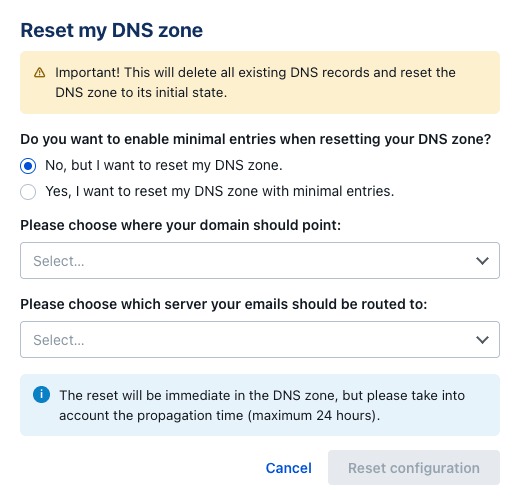
If you must change authoritative nameservers, fill in and check the new DNS zone before you change delegation. If only website routing changes, keep the existing email records as they are. If MX records, nameservers or SPF policy change, check the constraints in the web-hosting migration plan that protects email.
An example MX lookup is:
dig example.com MX +shortCompare the result with your mail provider’s required configuration. WordPress notifications may use a separate SMTP or mail-plugin setup, so sending a WordPress notification and receiving domain email are two different checks. For MX records, DKIM signatures and mailbox ownership, see business email hosting and DNS authentication requirements.
Account for caching and HTTPS
DNS TTL sets how long resolvers may keep an answer. A shorter TTL set in advance reduces caching for some resolvers, but visitors and intermediary systems can keep using the old routing during the transition. Before you change TTL, recursive resolvers or cached records, read the DNS TTL and resolver caching explanation.
The destination needs certificate coverage for your public hostname, including the apex and www variations. HTTPS behavior can also depend on your CDN and reverse-proxy configuration.
Check what the authoritative zone publishes with independent DNS lookups. Keep the source hosting accessible while you sort out mixed routing and application issues.
Run a post-cutover WordPress acceptance test
The migration has succeeded when the new server serves the site and its key functions work with the expected data.
Start from a browser or network without a hosts-file override, so you see what ordinary visitors see.
| Check | Expected result | Useful evidence |
|---|---|---|
| Domain and HTTPS | Apex and www work, the certificate is valid and redirects are correct | Resolved host, requested URL and origin response |
| Homepage and subpages | Content and deep permalinks load | Sample pages and HTTP responses |
| Administrator | You can log in and edit | A working admin session and a test edit |
| Recent content | Latest posts, uploads and changes are present | Sample records compared against the cutoff |
| Media and assets | Images, stylesheets, scripts and builder components render | Asset requests, status codes and the rendered page |
| Forms | Test submissions reach their destination | A received message or stored entry |
| WordPress notifications | Expected application emails go out | Mail-plugin result or a received message |
| Domain email | Existing mailbox routing still works | Independent incoming and outgoing test messages |
| Commerce, if present | Cart, checkout and order state stay consistent | A safe test order and the order records |
| Scheduled processing, if used | Required scheduled jobs and background actions run on the new server | Job configuration and a test run result |
| Application health | No blocking runtime errors in the tested journeys | Server and application logs |
Match the checks to the site. A small publishing site needs sample articles, media and an admin login. A membership site needs login and member-state checks. A store needs close attention to orders and payments.
Cached pages can hide a failed origin request, so look at server responses or logs when the difference matters.
Record a pass or fail for each check that applies to your site.
Troubleshoot database, redirect, 404 and missing-asset failures
Different symptoms point to different layers of the installation. Inspect the failing request and its configuration before you apply a broad change.
| Symptom | Investigate first | Important distinction |
|---|---|---|
| Database connection error | Database host, credentials, service and whether the import filled the expected tables | A stopped database service and an empty database need different fixes |
| Homepage works; subpages return 404 | Permalink settings, rewrite rules and server routing | The content itself may also be missing |
| Administrator login redirects | home, siteurl, HTTPS, cookies and proxy behavior | DNS and application redirects are separate mechanisms |
| Images or styles fail | Asset URLs, HTTP status, media files and generated builder resources | Check the requested path and HTTP response before you assume files are lost |
| HTTP 500 | Server and PHP logs, extensions, file permissions and runtime configuration | The logs show whether it is an application error or a permission failure |
| Notifications stop | WordPress mail integration, SMTP and application logs | Inbound domain mail can still work |
| Content differs across servers | Snapshot cutoff and records written after the copy | Find which server holds the needed data before you change routing again |
When the media library and frontend disagree
A Local Community user reported that images stayed visible in the WordPress Media Library after migration while some Bricks Builder background images disappeared from the published page. The discussion did not settle a root cause.
For a similar symptom, check the frontend asset URL, its HTTP response and any builder-generated or cached resources. Check file storage separately if the evidence points there.
When stored URLs need correction
Plugins and builders can keep absolute references to an earlier URL or path. If the public address has really changed, those values may need a database replacement.
The WP-CLI search-replace documentation covers serialized-data handling and a dry-run option.
An example command for a justified change:
wp search-replace 'OLD_URL' 'NEW_URL' --dry-runRun the preview against a recoverable database and with the access your installation requires.
After a same-domain host change, confirm that bad stored references are the cause before you replace anything. Apply the narrowest fix and retest the failing function.
Know when to roll back and when you can cancel the old host
Sending visitors back to the old server works as a recovery option only if its data is still usable. If the new server has already accepted orders, registrations or uploads, switching DNS back leaves those records on the new server.
The deciding factor is which server holds the current data.
| Observed condition | Recovery decision |
|---|---|
| New server has a critical failure and no new writes | Check that the original environment is usable, then consider sending traffic back |
| New data exists only on the new server | Preserve and reconcile it before serving an older database again |
| Both servers received different updates | Stop unsafe automatic changes and follow a controlled reconciliation plan |
| Critical functions pass and data is consistent | Keep a current backup, watch the required services and prepare to retire the old host |
A failed checkout, a serious HTTPS problem or missing transactional data can justify stopping the transition. Recovery can involve routing, application configuration and database state, depending on what broke.
Before you close the old hosting account, keep the recovery material for the installation and confirm that the new server holds all required records. No fixed number of hours is safe for every DNS and application configuration.
Remove temporary migration files
Some installer-based tools leave an installer script and archive on the web after the transfer. Once the migration succeeds, delete those files from the destination as the tool instructs, and keep protected backups where site visitors cannot reach them.
A standard manual file transfer does not create such installer files.
When this WordPress migration plan needs a different procedure
A domain change, a WordPress Multisite network or a managed WordPress.com export needs a different transfer procedure, with extra URL handling or platform-specific access.