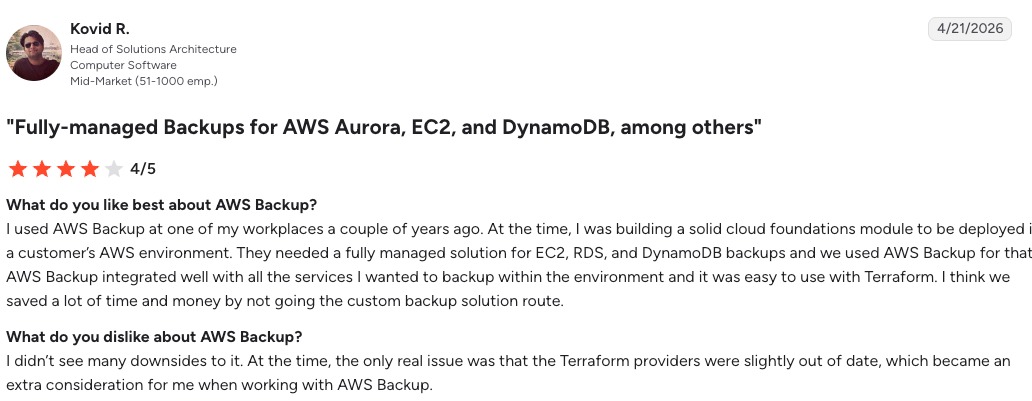
For a small team that mainly needs email at its own domain, compare email-only hosts using the number of people who need separate logins and the purpose of each public address. A full productivity suite earns its place when shared calendars, identity controls, or collaboration tools are essential to daily work. Before paying or changing MX records, identify who controls the domain’s DNS and test one representative mailbox migration.
Say you have three public addresses, two employees and one monthly bill. That is an ordinary setup, but each address can have a different job. One belongs to an employee, another receives sales inquiries, and a third needs several people to answer it. Those jobs decide what a hosting plan must provide.
Make two decisions before you compare brands. First, decide whether you are paying for email alone or for a suite of tools your employees use. Then find out whether a new host can take over the addresses and data without an improvised DNS cutover. If delegated nameservers, DNSSEC validation, or SERVFAIL responses change your decision, use the DNS resolution troubleshooting runbook to check the constraints.
Which Kind of Business Email Hosting Fits Your Team?

Business email hosting supplies mailboxes for a custom domain, such as [email protected]. The provider stores messages, administers accounts, and receives incoming mail for the domain. Gmail, Outlook, and Apple Mail can serve as reading applications, but the mail client and the service storing the mailbox are separate choices.
| Model | Best reason to consider it | Responsibility or trade-off |
|---|---|---|
| Independent email host | Custom-domain mail is the main requirement, with limited collaboration needs | Documents, calendars, or identity management can be separate purchases |
| Productivity suite | Employees depend on shared calendars, documents, integrated sign-in, or organization-wide administration | Every licensed user carries the broader subscription cost |
| Website-hosting email bundle | Basic mailboxes are sufficient and the hosting package meets support and recovery needs | Changing the website host can complicate email administration later |
A solo contractor with one professional address and a favorite desktop mail app needs a different list than an office that shares calendars and manages employee access centrally. A web-host bundle works for simple needs when its mailbox, recovery, and support terms fit.

Forwarding-only addresses are another option: [email protected] can deliver into an employee’s existing mailbox. That gives you an extra receiving address. An independently administered mailbox has its own storage, login, and delegated work queue, which matters when several people handle the same address.
Sort your business by daily work first: mail-first, collaboration-heavy, or fine with bundled hosting. That shortens the list fast. For how a domain, DNS, hosting and email fit together, see website hosting and domain services.
Can Your Email, Website, and Domain Stay With Different Companies?
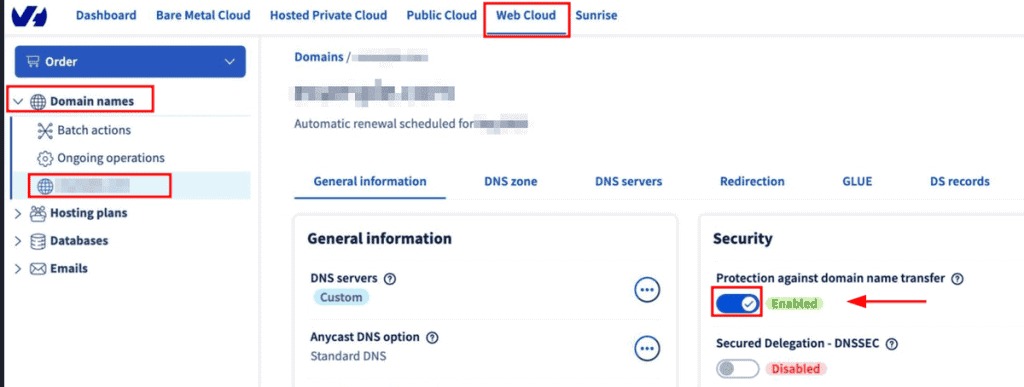
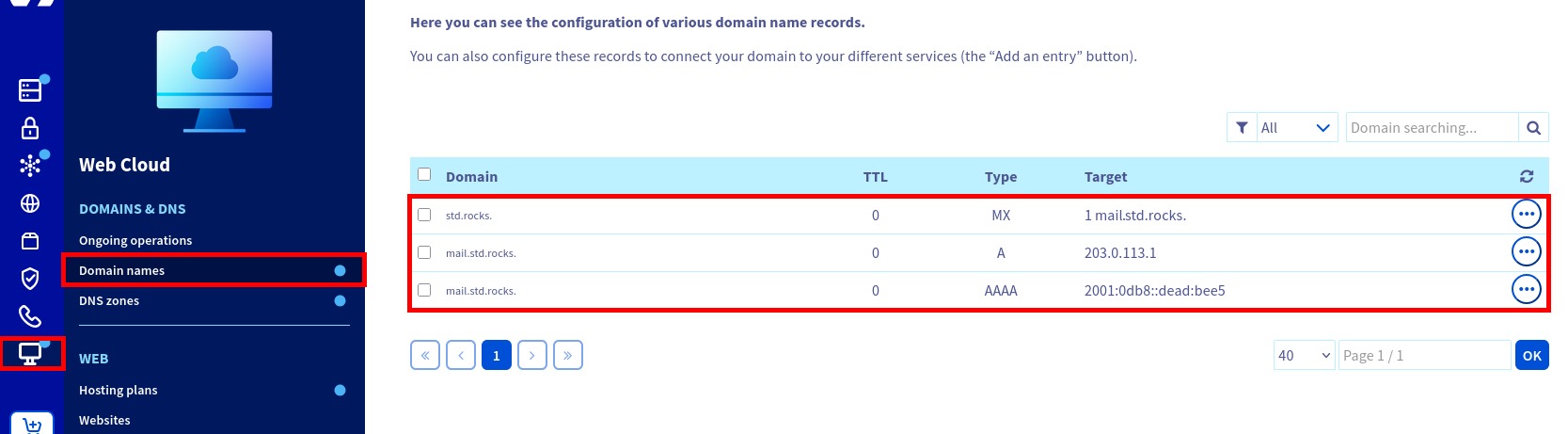
Yes. The registrar maintains the domain registration. The authoritative DNS operator publishes the records. The website host serves the site, and the email host receives and stores messages. Nameserver settings show which DNS service is authoritative, and the MX records in that zone identify the mail exchangers. So moving email normally means configuring the active DNS zone. You don’t transfer the domain or the website. A company could keep its domain at GoDaddy and its email at Rackspace, or move only the email service. Before changing anything, record those four operators and who administers each account. Editing records in an inactive DNS console changes nothing in live routing.
How Many Paid Mailboxes Does Your Business Need?
Count the people who need their own sign-ins and work responsibilities. Then classify the public addresses those people use. One address can be an alias that delivers to an existing account. Another can need a shared mailbox that several employees open and reply from.
One small-business owner described the billing question:
We have a very small business (two people) with three total email addresses. We pay Google (workspace, gsuite, whatever) nearly $30/month for this, which seems absurd. We use Google docs, sheets and that’s about it. We could very easily sign up for a free Google account and share it between us for this feature. I believe I also registered the domain for our business website with them. What are some good (cheaper) options for an email host that can use our business domain? Thanks
The poster reported nearly $30 per month for three addresses used by two people. That is one person’s bill, not a market rate. The third address could be an alias, an independent account, or a shared mailbox, and the post doesn’t say which.
| Account type | What it does | What to ask the provider |
|---|---|---|
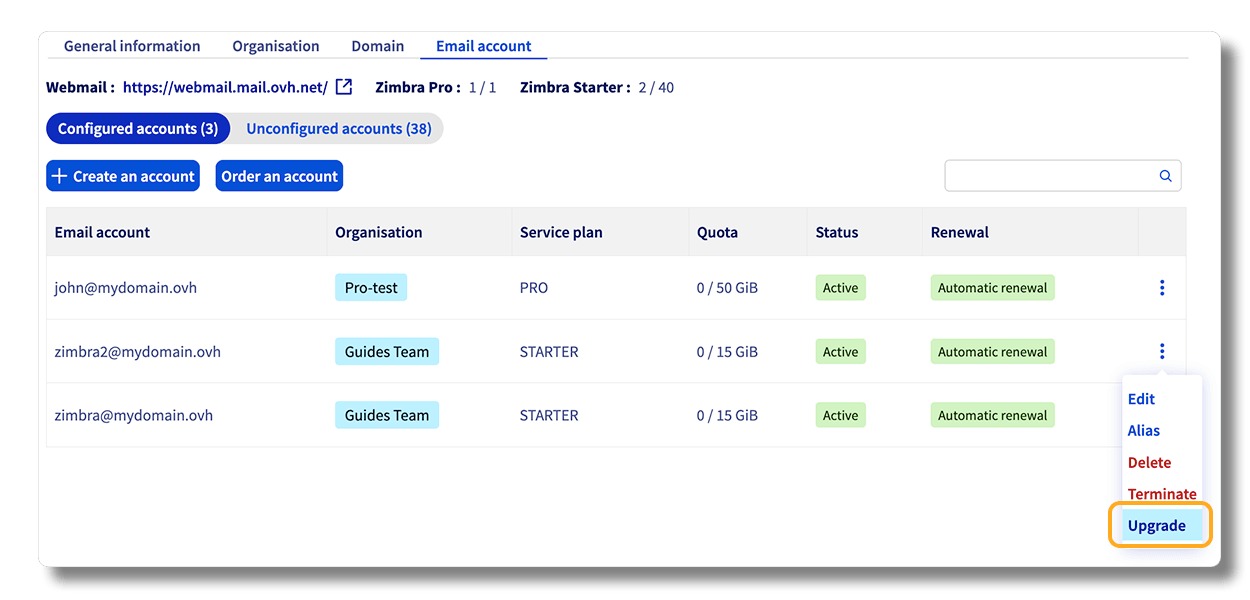
| Individual mailbox | Personal sign-in, storage, and account identity | Which user license covers the employee? |
| Alias or forwarding address | Delivers another public address into a mailbox | Can that user also reply using the alternate address? |
| Distribution group | Routes messages to designated group members | Who can receive, administer, and send as the group? |
| Shared mailbox | Several authorized employees handle one mailbox | What access, size, archival, and licensing limits apply? |
Microsoft 365 documents conditions under which a shared mailbox does not require its own license, while the people accessing it need licensed accounts. Storage, archiving, and some compliance features can change that. See Microsoft’s shared-mailbox guidance.
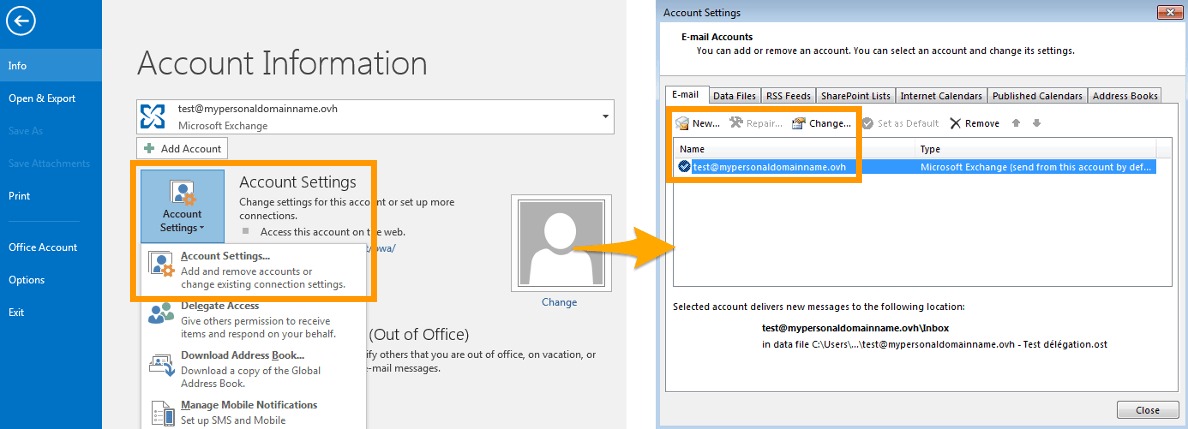
One account shared by several employees weakens your ability to identify an individual user, remove departing employees’ access, and recover the account safely. Delegated access is more accountable where the service supports it.
For each person and public address, record the need for a separate login, independent storage, receiving and send-as permissions, delegation, and audit history. Then translate that inventory into paid-seat counts using each provider’s licensing terms.
Which Storage, Security, and Support Features Matter?
Once a hosting model fits, four things decide the plan: usable storage, recovery, account security, and support tools. The headline mailbox allowance is only one part. A plan may use per-user limits or a shared storage pool, and retention or restore capabilities can follow different rules.
- Mailbox capacity: Compare what employees need today with expected growth, large attachments, archive requirements, and what happens when a quota runs out.
- Administration: Look for multifactor authentication, separate administrator roles, staff offboarding, delegated access, and a usable account-recovery process.
- Delivery diagnostics: Ask whether administrators can inspect message traces, rejections, spam or quarantine events, and support logs when a client says an email is missing.
- Restoration and retention: Separate everyday mailbox storage from recoverable deleted messages, retention policies, legal holds, and exports.
- Support: Compare support channels and escalation for an active business incident, plus any help during migration.
A team that sends invoices or takes bookings by email needs to be able to investigate a reported missing message. Server acceptance, spam filtering, and recipient visibility can produce different answers to the same complaint. That makes message tracing a better support filter than a bare promise of reliable delivery.
If you have specialized retention or privacy duties, check the contract and controls against them. A generic list of encryption and security features cannot establish regulatory compliance.
What Will Business Email Cost After the Introductory Price?
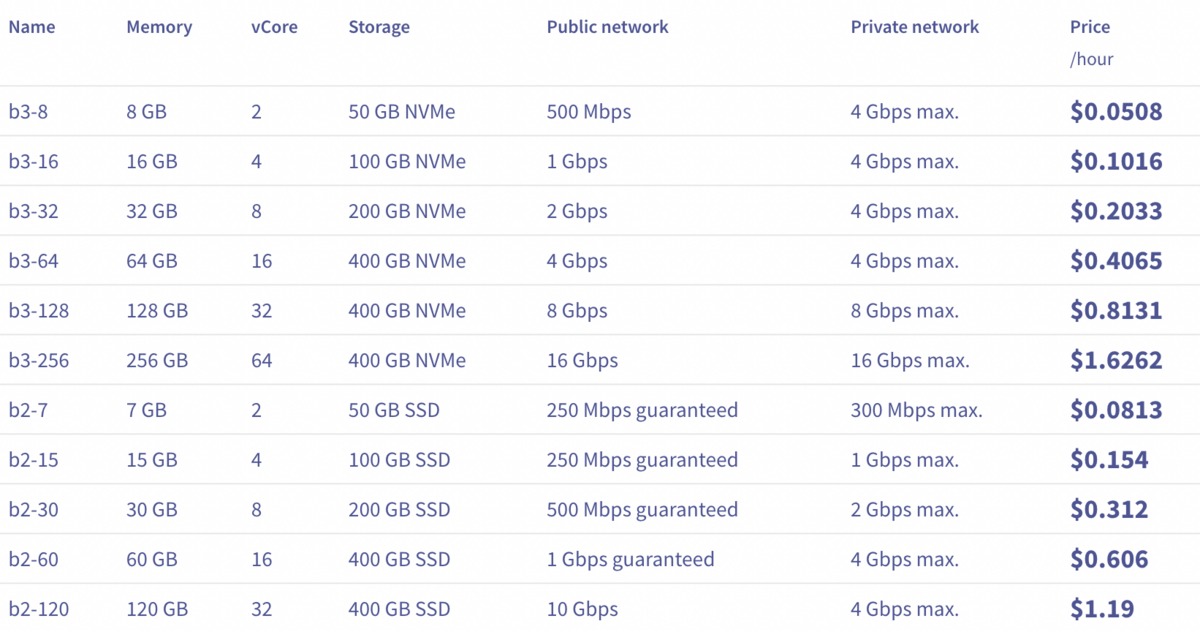
Compare the cost of the same licensed users and features over identical billing periods. Start with your seat count, then add storage, archiving, support, and any separate collaboration tools you need to replace a suite.
A workable recurring estimate is (paid seats × applicable seat rate) + recurring storage, archive, support and bundle charges. Add one-time setup and migration work to the period in which it is incurred.
Make the first year and renewal year comparable
- Seats: Use your paid-user total and keep aliases and shared-mailbox exceptions attached to the correct plan.
- Months 1 through 12: Multiply the promotional rate by its duration and the standard rate by the remaining months. Include recurring add-ons and one-time migration labor.
- Months 13 through 24: Apply the stated renewal or ongoing rates for each period and the services you still need. Add that year to the first-year result for the 24-month total.
- Annual prepayment: Record when payment is due as well as its monthly equivalent. Treat prepaid annual and monthly offers the same way when you compare them.
For a quick price-sensitivity check, let P be a placeholder monthly price per licensed user (not a vendor price), with no promotions or extra charges. Three users cost 36P over 12 months; 10 cost 120P; 50 cost 600P.
Google Workspace describes pooled-storage allowances and separates introductory promotions from standard pricing in its published plan information. The rate, currency, region, and billing term a US buyer sees come from that buyer’s own plan and checkout terms.
Website-host bundles can put domain renewal and mailbox charges on the same invoice. The domain and hosting renewal-cost guide covers that comparison.
Which Providers Belong on Your Shortlist?
Start with the service model that passed your workflow test, then eliminate plans that miss a concrete requirement. The candidates below suit different workflows.
- Google Workspace: Look at it when people use Google Docs, Sheets, calendars, and integrated account administration alongside email. Compare pooled storage, paid-user count, and continuing subscription terms for the edition you need.
- Microsoft 365: Fits teams that use Outlook, Exchange mailboxes, shared mailboxes, and Microsoft’s collaboration or identity tools. Check access licenses, archive requirements, and the migration path from your existing system.
- Zoho Mail: Suits a mail-focused business. Its documented free tier is limited to selected data centers, up to five users on one domain and 5 GB per user, without IMAP, POP, or ActiveSync. If you need those client protocols, compare paid plans and confirm regional availability.
- Fastmail: Works when email is administered separately from the company website. Its DNS documentation describes how web and mail services can remain with different operators. Mailbox, client, storage, and sharing requirements still decide suitability. Fastmail Business Basic does not include custom domains or third-party mail clients on its own. In a multi-user business account, a Business Standard or Professional administrator can share a custom domain with Basic users.
- Proton Mail: Supports a custom domain under a qualifying paid plan. Its published setup depends on creating the expected addresses and verifying the domain. Check client access and migration features on the plan you select.
- Web-host-bundled mail: Keep it on the list if the host meets your mailbox, backup, administration, and support requirements. Ask how email stays accessible if you later change website host.
Three filters change the outcome quickly. If you depend on shared calendars and centrally managed employee accounts, your list needs those capabilities. If you use a desktop mail app over IMAP, you cannot adopt a plan that omits IMAP access. If a group inbox needs delegated replies, the mailbox and licensing model must support them.
Keep two or three services and note each disqualifier with the exact plan it applies to. Entry-level and promotional features are plan-specific, especially where regional availability or billing terms differ.
What Must Survive Migration Besides the Messages?
Moving messages is one part of moving a working business account. Contacts, personal calendars, shared calendars, folder organization, delegation, and local archives can need separate migration steps or tools.
Microsoft’s standard IMAP migration method moves messages and email folders but excludes contacts, calendars, and tasks. That limit applies to the IMAP method; other provider-supported migration processes can cover more. See Microsoft’s migration documentation.
One administrator described the trouble with an older POP3 environment and what followed:
I recently started at a new company who was on an old POP3 hosting service while using Zoho Mail as their mail app. When I came aboard I noticed constant issues with emails sometimes taking 2-8 hours to finally hit our Zoho Mail and confirmed the mail was sitting in our POP3 host. … My first project is to upgrade out mail system, so I migrated us from POP3/Zoho to 365/Zoho, and during the migration we had some Zoho Mail specific issues (regarding migrating our .EML files) so some uses were on Outlook for a bit and the majority of the company really enjoyed it.
In this account, the messages sat at an external POP3 host while Zoho Mail was used to access them. The poster reported delayed retrieval, then trouble with .EML files and calendar setups during a Microsoft 365 move. The poster doesn’t say Zoho-hosted mail caused the original delay.
| Data or function | Check | Done when |
|---|---|---|
| Messages and folders | Source and destination folder contents | Representative messages and organization are present |
| Contacts | Export/import or supported transfer method | Required contacts are usable at destination |
| Personal and shared calendars | Events, sharing, and permissions | Required calendars can be opened and used |
| Aliases and delegation | Address mapping and mailbox rights | Authorized people retain expected receive/reply access |
| Local archives and rules | Files and settings outside source server | Needed .EML content and rules are available |
| Applications and integrations | Access method and account connections | Required clients and systems work with the target |
Run a pilot on one mailbox, ideally the one with the most awkward mix of local archives, calendars, and delegated permissions. Compare source and destination against this table, record the missing categories, and decide how to handle each gap before you move other users.
What Should Be Ready Before You Change MX Records?
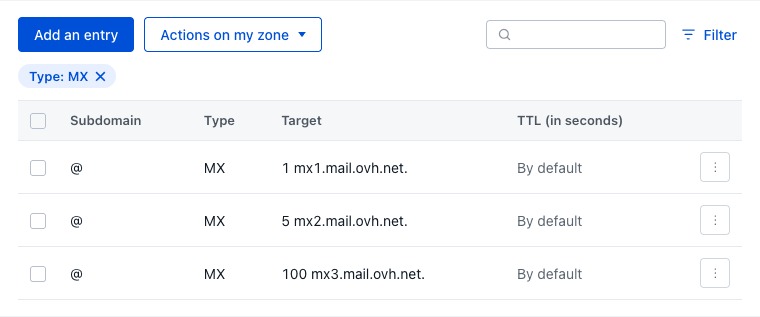
The destination must recognize the domain and its recipients before incoming mail is redirected. MX records identify the servers that accept mail for the domain, and their preference values help sending servers choose and retry those servers.
One sysadmin asked about old and new MX entries:
How do you migrate one email provider to another without losing emails? Specifically, you have your current setup with its DNS records. To migrate, you add the DNS records for your new provider. If you delete your existing DNS records before adding new ones, you’ll potentially lose emails. If you add new DNS records without first deleting old ones, then I don’t even know what will happen. Do emails get load balanced in some way and some will go to your old provider and some to the new? Logically the second option is better, because at least you should get the emails in at least one of two mailboxes. Then you eventually delete the old DNS records, back up your old emails since at that point no new emails are arriving in that mailbox and transfer them to the new servers. Any hints?
MX preference sets an order for choosing mail exchangers, with defined handling of equal preferences. Listing two unrelated providers does not give you a controlled split of migration traffic. DNS caches can also keep some senders on the earlier records during the transition.
Microsoft and Proton setup documentation describe preparing recipients before the MX switch in their respective workflows. That makes recipient creation, domain verification, and continued access to the previous environment useful steps to finish first.
- New recipients: Create the intended users, aliases, and shared addresses on the destination service.
- Domain readiness: Complete the provider’s domain verification and administrative setup.
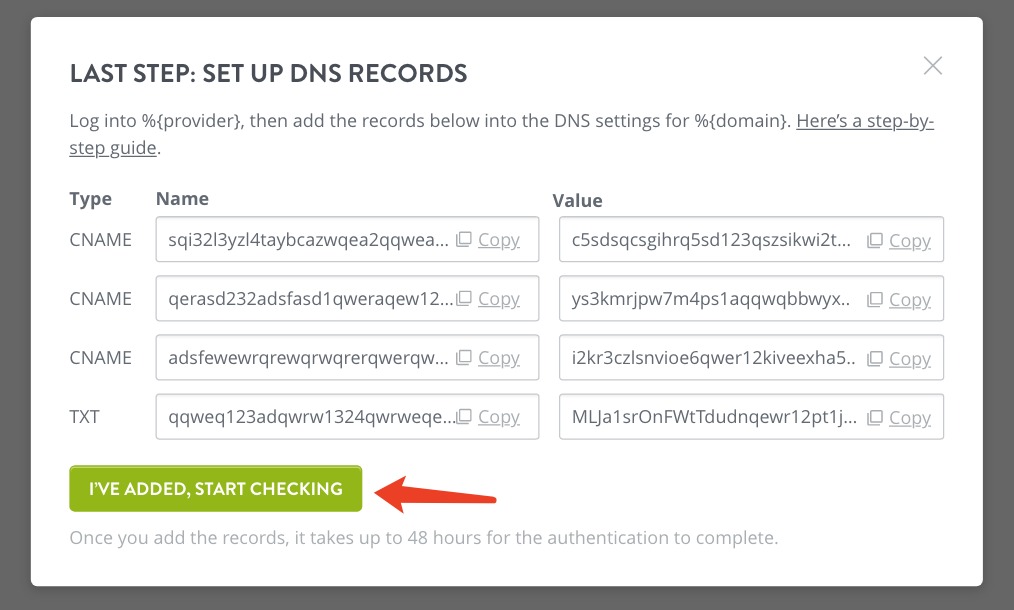
- DNS records: Prepare the provider’s MX and sending-authentication entries for the authoritative zone.
- Transition continuity: Keep access to the previous mail service, required backups, and your synchronization or rollback method. Confirm the pilot’s recorded data gaps are closed.
- Operational contact: Name someone to own the switch and investigate failed incoming delivery.
Google Workspace documents smtp.google.com for its newer MX setup and continued support for older aspmx configurations. Follow the instructions that match your domain’s configuration in Google’s MX setup documentation.
For DNS TTL and recursive caching, see the DNS TTL guide. The detailed synchronization, cutover, and rollback procedure is in the mail migration runbook.
Which DNS Records Protect Your Domain’s Mail?
Mail routing and sender authentication work at different points in delivery. MX handles inbound routing. SPF and DKIM help a receiving system assess the authorized sending service and cryptographic signing, and DMARC sets alignment and policy treatment for the visible From domain.
| Record | Role | Question to answer |
|---|---|---|
| MX | Identifies inbound mail exchangers | Do the configured destinations recognize the intended recipients? |
| SPF | Specifies authorized sending hosts for the relevant domain | Does the sending host pass SPF authorization for the relevant SMTP MAIL FROM or HELO identity? |
| DKIM | Enables verification of cryptographic message signatures | Are messages signed and verifiable under the expected domain? |
| DMARC | Uses aligned authentication outcomes for domain policy and reporting | Are the visible From domain and valid authentication results aligned? |
RFC 7208 specifies SPF and RFC 6376 specifies DKIM. RFC 9989, published in May 2026, updates DMARC and obsoletes RFCs 7489 and 9091.
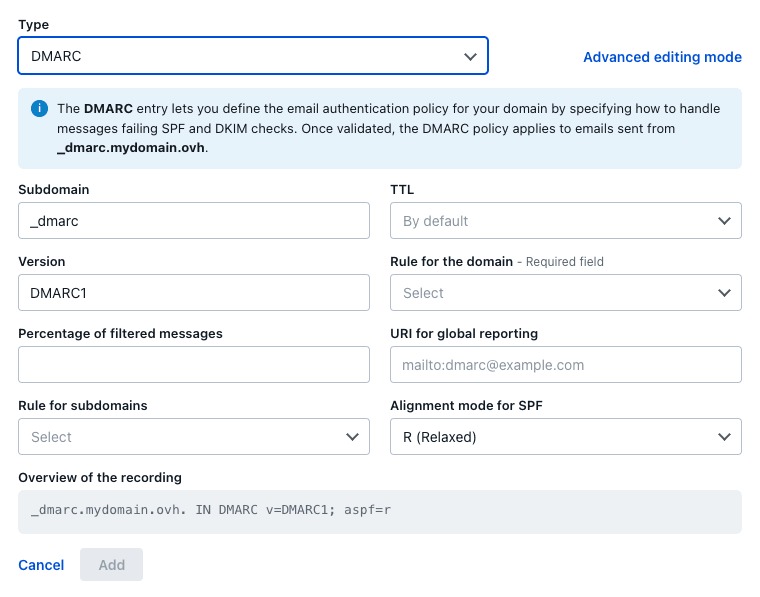
Say employees send through the mail host while an invoicing platform and a customer-management system also send using the company domain. Each legitimate path needs its own authentication setup. Otherwise the receiving service can report authentication or alignment failures.
List those sending applications and inspect authentication results in messages sent through each route, using headers and delivery diagnostics. Successful authentication confirms domain authorization and alignment. Inbox placement also depends on the receiving system’s filtering and message treatment.
How Do You Know the New Email Setup Works?
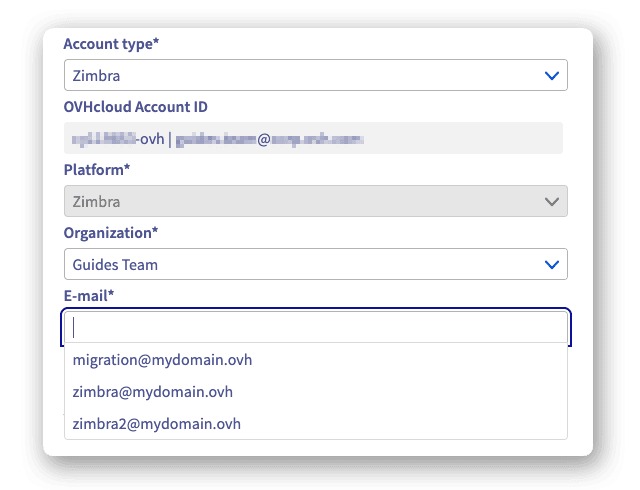
Sign off when your users can access their accounts and typical external messages pass send, receive, reply, and attachment tests. The mailbox pilot covered the data. This check covers how the configured service behaves.
Submission from an email client, acceptance by a receiving server, visibility to a recipient, and a working reply path are four distinct stages. When someone reports a vanished message, the message trace should narrow down which stage failed.
Setup can stall well before the MX change. One Microsoft 365 migration participant described a four-account move that could not proceed with the expected domain:
I am trying to migrate our small company (4 emails) and it feels like this whole process is just set up to fail. I’m following a youtube video that has a lot of great comments, and it’s working, except right now, I’m working on building the new migration batch, but it won’t recognize the primary domain. Is there some way I can figure this out on my own? I’ve been waiting for a call from support, but I feel like this isn’t high on their priority list. Or is there someone I can hire to do it for me, or walk me through it on the phone? The budget isn’t huge, but this is ridiculous… You’d think they’d want to make this easier.
The post reports a migration batch that did not recognize the primary domain and gives no confirmed cause. It does show how much provider support, administrative prerequisites, and access to an experienced migration specialist can matter when you choose.
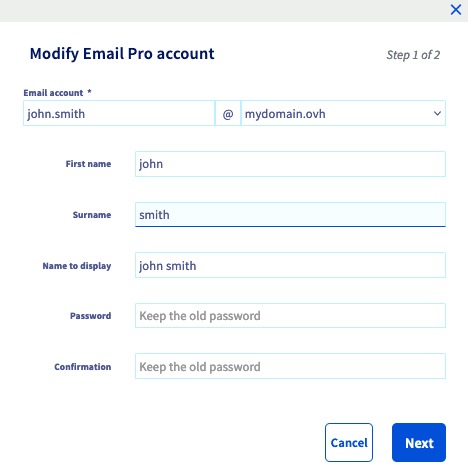
- Incoming mail: Send a message from an independent outside account and confirm the intended mailbox receives it.
- Outgoing and reply: Send from a business account to an outside recipient, confirm arrival, and reply to the business address.
- Attachments: Repeat with a typical attachment and check for filtering or rejection.
- Public addresses: Test the required aliases, groups, and delegated shared mailboxes with the employees who use them.
- Access and diagnostics: Confirm each employee can sign in and find message-tracing information for any failed test.